
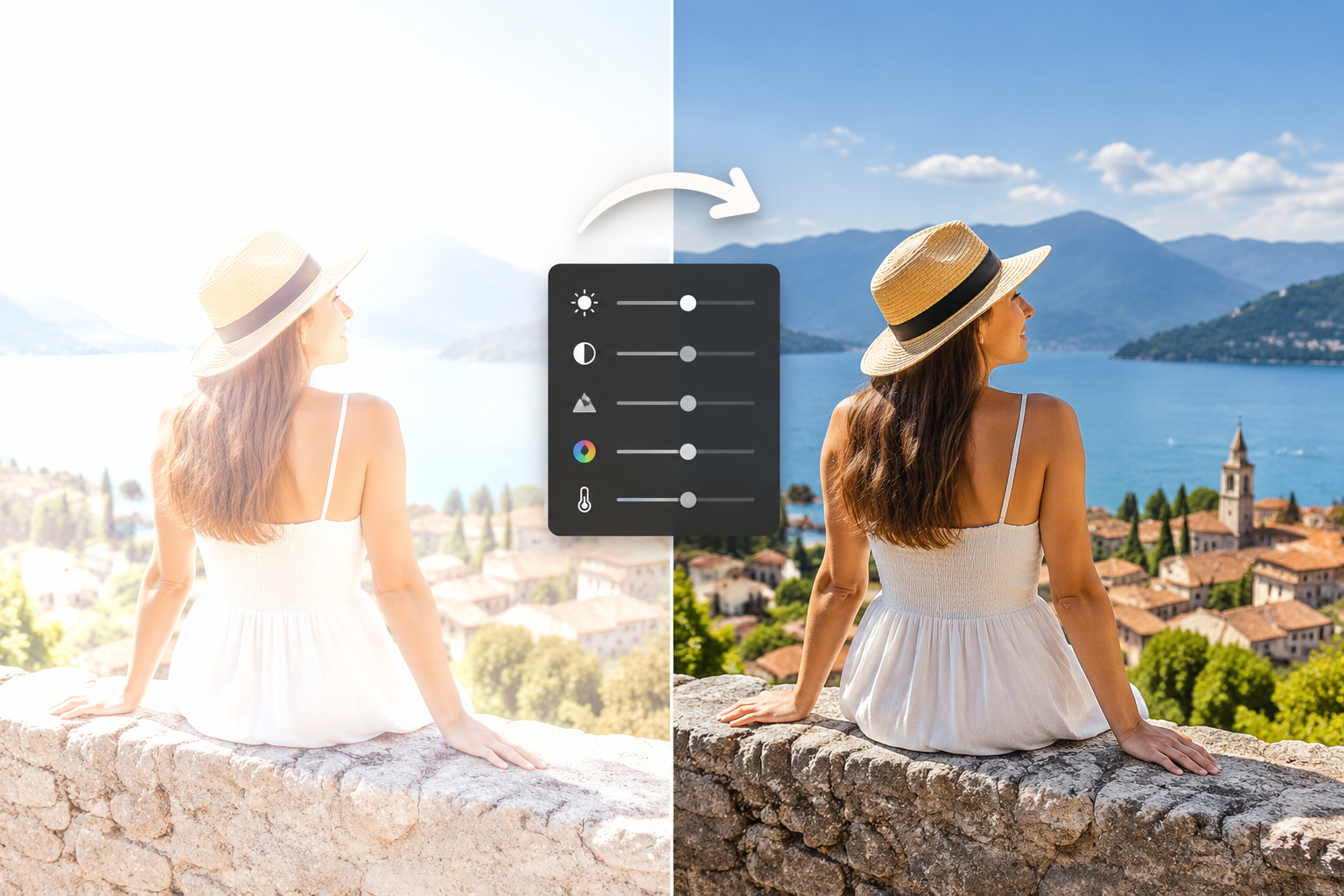
A perfectly timed photo can lose its charm when it turns out too bright, with faded colors, missing details, and harsh white areas. This common photography problem is called overexposure, and it usually happens when too much light enters the camera sensor. Whether you are taking pictures on a sunny day, capturing a portrait near a window, or shooting with the wrong camera settings, an overexposed photo can make your image look flat and unnatural.
The good news is that many overexposed photos can be repaired after taking them. With the right editing techniques, you can bring back details, improve colors, and make the image look much closer to what you originally saw.
In this guide, you will learn how to fix overexposed photos after taking them using simple adjustments, mobile apps, Photoshop, Lightroom, and AI editing tools.
How to Fix Overexposed Photos After Taking Them
Fixing an overexposed photo starts with balancing the amount of light in the image. The main goal is to reduce excessive brightness while recovering details that are hidden in the highlights.
Most photo editing tools offer basic adjustments that can help improve an overexposed image:
- Reduce exposure or brightness levels to make the image darker
- Lower highlights to recover details from bright areas
- Adjust shadows to balance darker parts of the photo
- Increase contrast slightly to bring back depth
- Improve colors if the image looks faded
Avoid making extreme changes immediately. A photo that looks too bright does not always need a major correction. Small adjustments often create a more natural result.
For example, if a person’s face looks washed out because of sunlight, reducing highlights may recover facial details without making the entire image too dark.
Understand Why Your Photos Look Overexposed Before Editing
Before fixing an overexposed photo, it helps to understand why it happened. Knowing the cause can help you make better edits and prevent the same issue in future shots.
Too Much Light Entering the Camera
The most common reason behind overexposed photos is excessive light. When the camera sensor receives more light than it can properly handle, bright areas lose their details and become completely white.
This often happens when:
- Taking photos under strong midday sunlight
- Shooting near bright windows
- Photographing reflective surfaces
- Capturing scenes with strong artificial lighting
For example, a beach photo taken under direct sunlight may show a bright sky with almost no visible clouds because the highlights have become overexposed.
Incorrect Camera Exposure Settings
Camera settings play an important role in controlling light. A high ISO setting, slow shutter speed, or incorrect exposure compensation can allow too much light into the image.
Smartphone cameras usually handle exposure automatically, but they can still struggle in challenging lighting conditions.
Difficult Lighting Conditions
Some situations naturally create exposure problems. Portrait photography during harsh sunlight, indoor photos facing a window, and outdoor scenes with a very bright background often result in overexposed areas.
Understanding these situations helps you choose the right editing method instead of randomly adjusting settings.
Adjust Exposure and Brightness to Reduce Overexposure
The first step in repairing an overexposed photo is usually adjusting exposure and brightness.
Exposure controls the overall amount of light in your image. Reducing it can quickly bring back balance when the entire photo looks too bright.
Brightness adjustments work slightly differently. They affect the overall appearance of lightness and darkness but may not always recover lost details.
When adjusting exposure:
- Start with small changes
- Check whether details return in bright areas
- Avoid making the image too dark
If the photo still looks washed out after reducing exposure, move on to highlight adjustments.
For example, a travel photo with a bright sky may look better after lowering exposure slightly and then recovering details using highlight controls.
Recover Lost Details Using Highlights and Shadows Adjustments
Highlights and shadows are two of the most useful tools when correcting overexposed images.
Lowering Highlights
Highlights control the brightest parts of your photo. Reducing highlights can help recover details that appear lost in white areas.
This adjustment is especially useful for:
- Bright skies
- White clothing
- Sunlit faces
- Outdoor backgrounds
A portrait taken in direct sunlight may have bright patches on the forehead or cheeks. Lowering highlights can make those areas look smoother and more natural.
Increasing Shadows
After reducing brightness and highlights, some parts of the image may become too dark. Increasing shadows can restore details in those areas.
The combination of lowering highlights and raising shadows creates a balanced image with better contrast and depth.
Fix Overexposed Photos Using Color and Contrast Adjustments
Overexposed photos often lose their original colors. They may appear faded, dull, or lacking contrast. Once exposure is corrected, color adjustments can help restore the image.
Increase Contrast Carefully
Contrast adds separation between light and dark areas. A small increase can make the photo look sharper and more realistic.
However, too much contrast can make the image look harsh and unnatural.
Adjust Saturation and Vibrance
Overexposure can make colors appear weak. Increasing vibrance or saturation can bring back color intensity.
Vibrance is usually safer because it enhances less noticeable colors while protecting skin tones.
Correct White Balance
Sometimes overexposed photos also have color problems. The image may appear too warm, too cool, yellow, or blue.
Adjusting white balance helps restore natural-looking colors, especially in portraits.
How to Fix Overexposed Photos on Your Phone
You do not need expensive software to fix bright photos. Many smartphone editing apps can repair overexposed images within minutes.
Popular options include:
- Lightroom Mobile
- Snapseed
- Google Photos editor
- iPhone Photos app
A simple editing process usually looks like this:
- Open the photo in your editing app.
- Reduce exposure and highlights.
- Adjust shadows and contrast.
- Improve colors using vibrance or saturation.
- Compare the edited version with the original.
- Save the final image.
When editing on a phone, avoid applying too many filters. Heavy filters can hide problems temporarily but often reduce image quality.
How to Fix Overexposed Photos in Photoshop
Photoshop provides more advanced options for photographers who want complete control over their edits.
One of the easiest methods is using the Camera Raw Filter. It allows you to adjust exposure, highlights, shadows, contrast, and colors in one place.
Adjustment layers are another powerful option. They allow you to edit without permanently changing the original image.
Useful Photoshop adjustments include:
- Exposure adjustment layer
- Levels adjustment
- Curves adjustment
- Brightness and contrast controls
For professional results, masking tools can help you fix only the overexposed areas instead of changing the entire image.
For example, if only the sky is too bright, you can edit that section separately while keeping the rest of the photo unchanged.
How to Fix Overexposed Photos in Lightroom
Lightroom is one of the most popular tools for photographers because it makes exposure correction simple and flexible.
Important Lightroom tools for fixing overexposed photos include:
- Exposure slider
- Highlights slider
- Whites adjustment
- Shadows slider
- Tone curve
- Color mixer
A simple Lightroom workflow is:
- Adjust overall exposure.
- Reduce highlights to recover details.
- Balance shadows.
- Correct colors.
- Make final contrast adjustments.
Lightroom is especially useful for editing multiple photos from the same event, such as weddings, travel shoots, or outdoor sessions.
Best AI Tools to Fix Overexposed Photos Automatically
AI photo editors have made image correction much faster. These tools can analyze an image and automatically improve brightness, colors, and details.
AI editing tools can help by:
- Detecting overexposed areas
- Restoring missing details
- Improving image balance
- Enhancing colors automatically
Popular AI-powered tools include Adobe Firefly, Luminar Neo, Fotor AI, and Canva AI photo editing features.
AI tools are helpful for quick improvements, especially for beginners. However, manual adjustments usually provide more control when you want a specific look.
Common Mistakes to Avoid When Fixing Overexposed Photos
Editing an overexposed photo requires balance. Many people make the mistake of overcorrecting the image.
Avoid these common problems:
- Making the photo too dark after reducing exposure
- Increasing saturation too much
- Adding excessive contrast
- Making skin tones look unnatural
- Sharpening areas where details are already lost
The goal is not just to make the photo darker. The goal is to restore a realistic and natural appearance.
Tips to Prevent Overexposed Photos in the Future
While editing can save many images, preventing overexposure while taking photos is always better.
Here are some useful tips:
- Adjust exposure compensation when needed
- Avoid shooting directly into strong sunlight
- Use HDR mode for high-contrast scenes
- Check the camera histogram if available
- Lower ISO in bright environments
- Tap on your subject to adjust smartphone exposure
Good camera habits reduce editing work and help you capture better-quality photos from the beginning.
Final Editing Checklist for Fixing Overexposed Images
Before saving your edited photo, check these important points:
- Is the exposure balanced?
- Are highlights showing more details?
- Do shadows still contain enough information?
- Are colors natural?
- Does the edited image look better than the original?
- Did you maintain good image quality?
With simple adjustments and the right editing tools, many overexposed photos can be improved. Whether you are editing on a phone, using Photoshop, Lightroom, or AI tools, careful changes can turn a bright and faded image into a balanced, detailed photo.